Before you start
Windows manages default apps separately from codec installation. A codec pack can add playback support, but Windows may still open media files with the app currently assigned as the default player. Use this guide to change the default video or music player manually.
For individual extensions such as .mp4, .mkv, .avi or .flac, newer Windows 10 builds also provide “Choose default apps by file type” in the Default apps screen.
Step 1
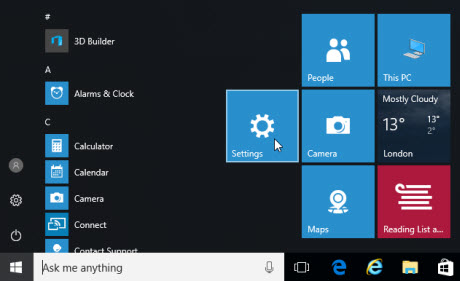
Open Settings
From the Start menu, open Settings. On newer Windows 10 builds you can also search for “Default apps” directly from Start.
Step 2
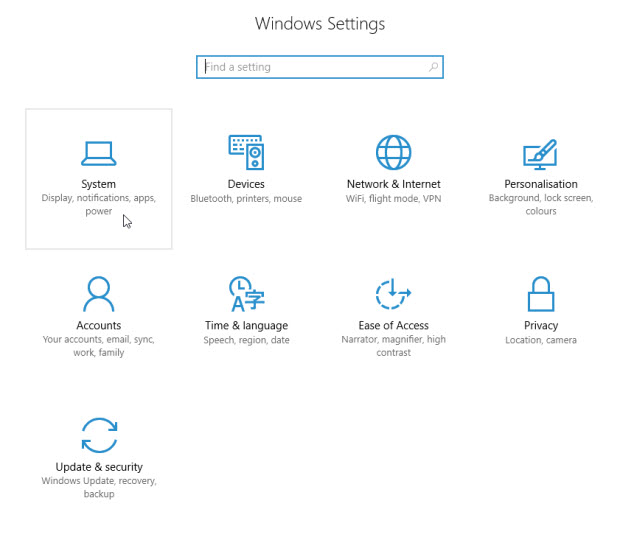
Open the default app area
In older Windows 10 builds, choose System. In newer builds this area may appear under Apps > Default apps.
Step 3
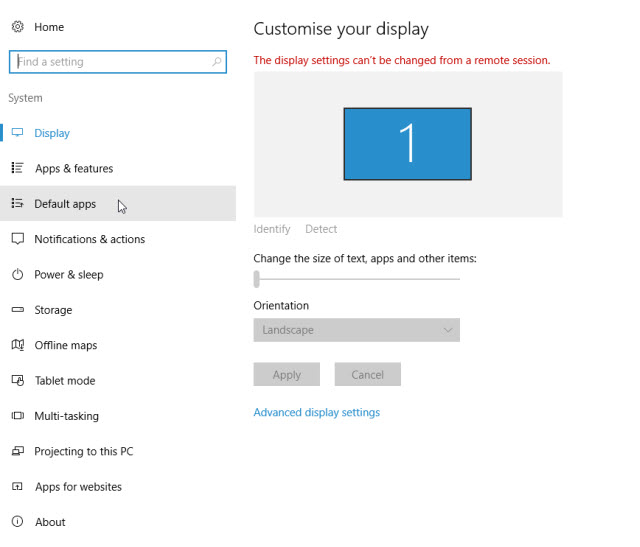
Choose Default apps
Select Default apps from the left side of Settings.
Step 4
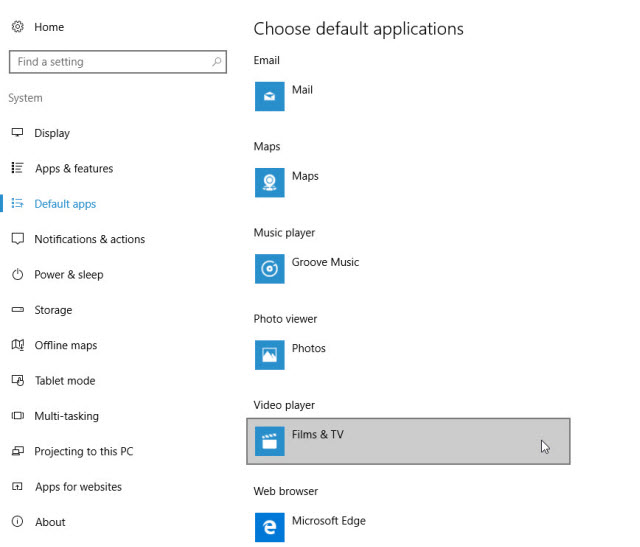
Change the video player
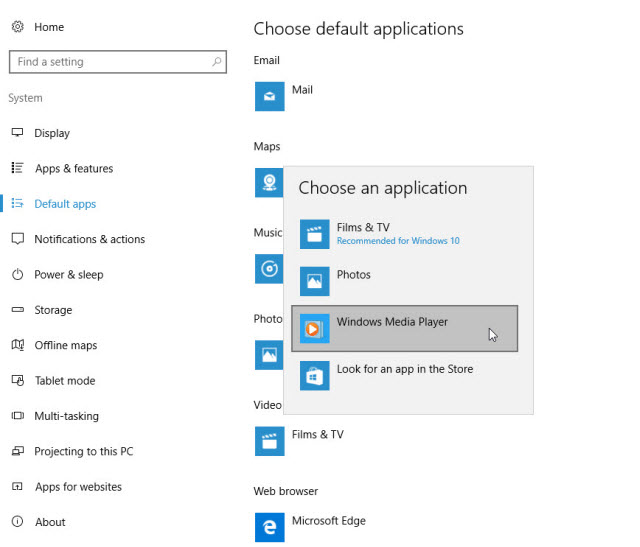
Under Video player, click the current app, such as Films & TV or Movies & TV.
Step 5
Select Windows Media Player
Choose Windows Media Player to make it the default app for supported video files.
Audio defaults
To change music playback instead, use the Music player section in Default apps and select Windows Media Player or your preferred audio player.