Before you start
Windows 8 keeps default app choices in PC Settings. Installing codecs can add playback support, but Windows may still use a different app until the video or music default is changed manually.
This page is kept as a legacy support guide for older systems. The steps are intended for Windows 8 and Windows 8.1, not current Windows 11 Settings screens.
Step 1
Open PC Settings
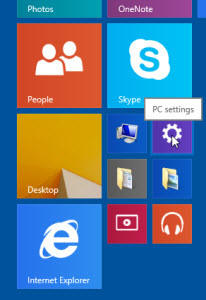
From the tiled Start screen, open PC Settings.
Step 2
Open Search and apps
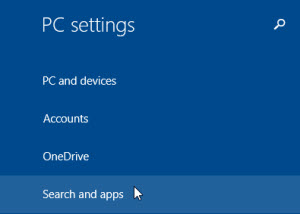
In PC Settings, choose Search and apps.
Step 3
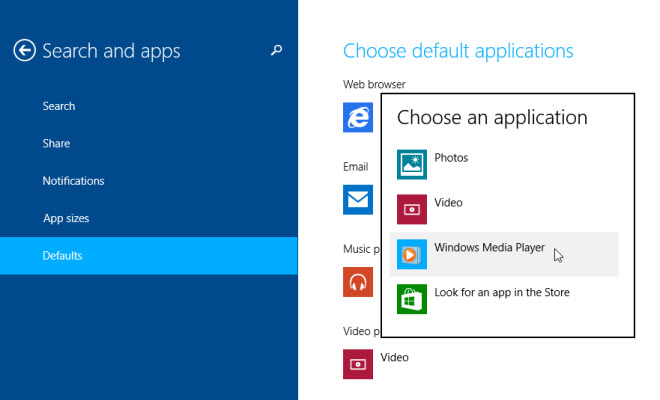
Choose Defaults
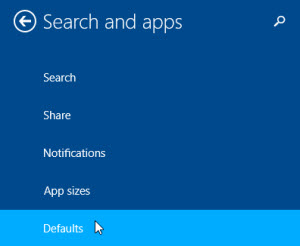
Select Defaults from the Search and apps section.
Step 4
Change the video default
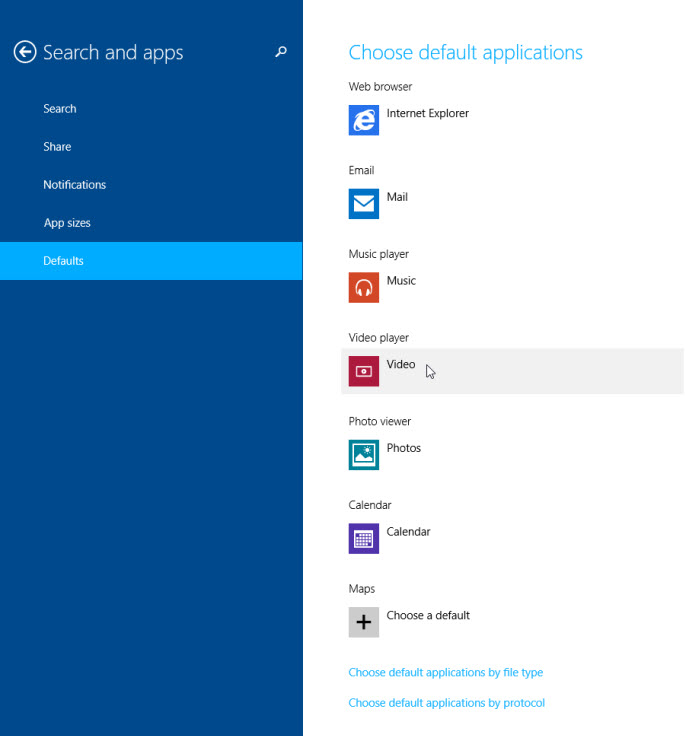
Under Choose default applications, select the current app shown for Video.
Step 5
Select Windows Media Player
Choose Windows Media Player to make it the default app for supported video files.
Audio defaults
To change music playback instead, choose Music rather than Video in the Defaults screen, then select Windows Media Player or your preferred audio player.